
To claim Google Business Profile, search for your business on Google, open the profile that appears, and ask for ownership, then complete verification so Google knows you are the rightful owner and you can edit hours, services, photos, and reviews from one place, which helps customers trust what they see.
Key Takeaways
- Claiming starts with a search. If a profile already exists, ask for ownership instead of creating a second one.
- To claim Google Business Profile, use the exact business name and address that customers see in real life.
- Verification proves ownership. Postcard, phone, email, and video checks all serve the same purpose.
- After verification, complete every section, add real photos, and keep details fresh.
- If verification fails, check details for typos, watch for the postcard, and try the next method Google offers.
What Does Claiming a Profile Actually Mean?
Claiming means you take control of the Google listing for your business. Until you claim it, Google may show basic details that it gathered from other sources.
Those details can be wrong. Hours can be old. Photos can be poor. A customer may call a wrong number and simply move on to a rival.
Once you own the profile, you can fix those details. You can add services, opening hours, a website link, and photos that show your work at its best.
Claiming is not the same as building a website. A website gives detail. A claimed profile gives control on Google Search and Google Maps, where many customers start.
If you are new to local search, read our guide on what local SEO is and why your small business needs it first. It explains how the profile, your website, and reviews work together.
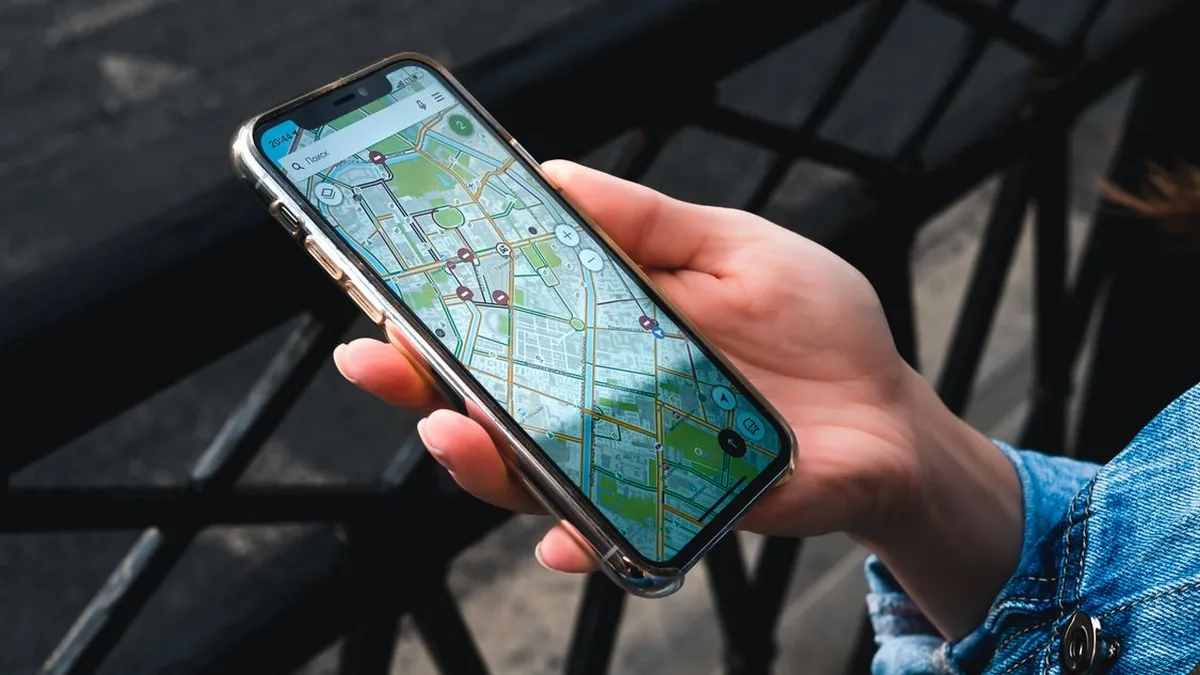
Think of the profile as your shop window on Google. You would not leave your real shop window dusty and out of date. Your Google window deserves the same care.
How Do You Claim Google Business Profile?
The first move to claim Google Business Profile is to search for your exact business name on Google Search and Google Maps.
Look carefully at the results. A profile may already exist even if you never created one. Google often creates a basic listing from public information.
Follow this checklist in order:
- Search for your business name on Google Search and Google Maps.
- Open the profile that matches your business, your address, and your phone number.
- Select the option to claim the business or to own the business.
- Sign in with the Google account you plan to use for your business.
- Confirm your business name, category, address or service area, phone number, and website.
- If someone else manages the profile, send a request for ownership through the profile and wait for a response.
- Complete verification using the method Google offers you.
Use your real business name, exactly as it appears on your shop sign and your paperwork. Do not add extra keywords or place names to the name field.
Google checks the name against what customers see in real life. A stuffed name can cause delays and can weaken trust with customers who visit.
What If a Profile Already Exists for Your Business?
If a profile already exists, you can still claim Google Business Profile for your business by requesting ownership through that profile.
Google will notify the current manager. That person can approve the request, or the request may move forward if no response arrives in a reasonable time.
Do not create a second profile for the same business at the same address. Duplicate listings split reviews, confuse customers, and make verification harder.
If the details on the existing profile are wrong, note the errors now. You can correct them after ownership moves to you, and a clean profile will help customers far more than a second listing ever could.
If you cannot find any profile at all, you can create a new one from scratch. Enter the same careful details, then move straight to verification.
How Do You Verify After You Claim Google Business Profile?
After you claim Google Business Profile, Google asks you to prove that the business is real and that you can speak for it.
Verification is a safety step. It stops strangers from editing your hours, your phone number, or your website link.
Google shows only the methods that fit your business. Your options may differ from the options shown to another owner, and that is normal.
| Method | How it works | Best for |
|---|---|---|
| Postcard by mail | A code is sent by post to your business address | A business with a fixed address customers can visit |
| Phone or text | A code is sent to the phone number on file | Some eligible businesses with a verified phone number |
| A code is sent to a business email address | Some eligible businesses with a matching email domain | |
| Video | A short video shows your premises, signage, and work | Businesses that can show proof on camera |
For postcard verification, watch your mail closely. The card looks plain, so it is easy to mistake it for junk mail and throw it away.
When the code arrives, enter it exactly as printed. Do not share the code with anyone outside your business, and do not post a photo of the card online.
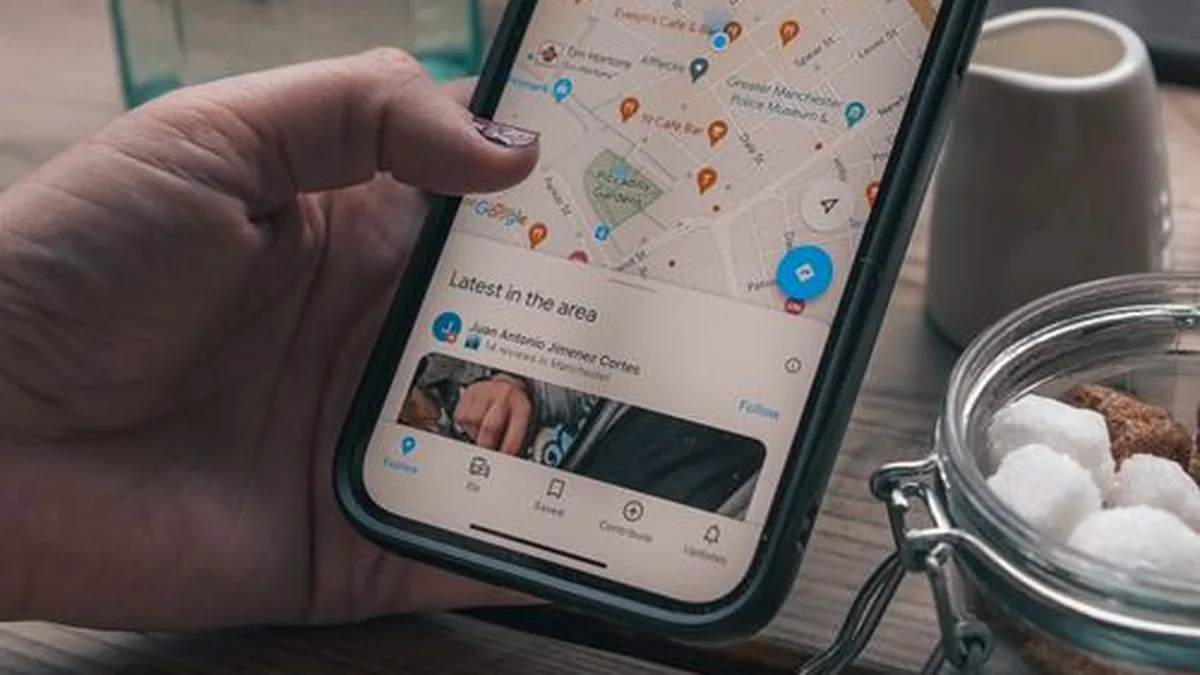
For video verification, show the outside of your premises, your sign, and the inside where work happens. Speak clearly about what your business does.
Keep the video honest and simple. Google wants proof that the business is real, not a polished advert.
What Should You Do After Verification?
Verification unlocks full control, but the work does not end there. An empty profile will not win many customers.
Complete every section that fits your business. Add a clear description, your services, your hours, and a link to your website.
Add real photos of your premises, your team at work, and finished jobs. Customers trust photos that look real far more than stock style images.
Ask happy customers for reviews after a good visit or a finished job. Reply to every review in a calm and helpful tone, even when the review is critical.
Post short updates when you have news, a new service, or a seasonal offer. Fresh activity shows Google and customers that the business is active.
Our guide on Google Business Profile setup walks through each section in detail, so use it as a checklist while you complete your profile.
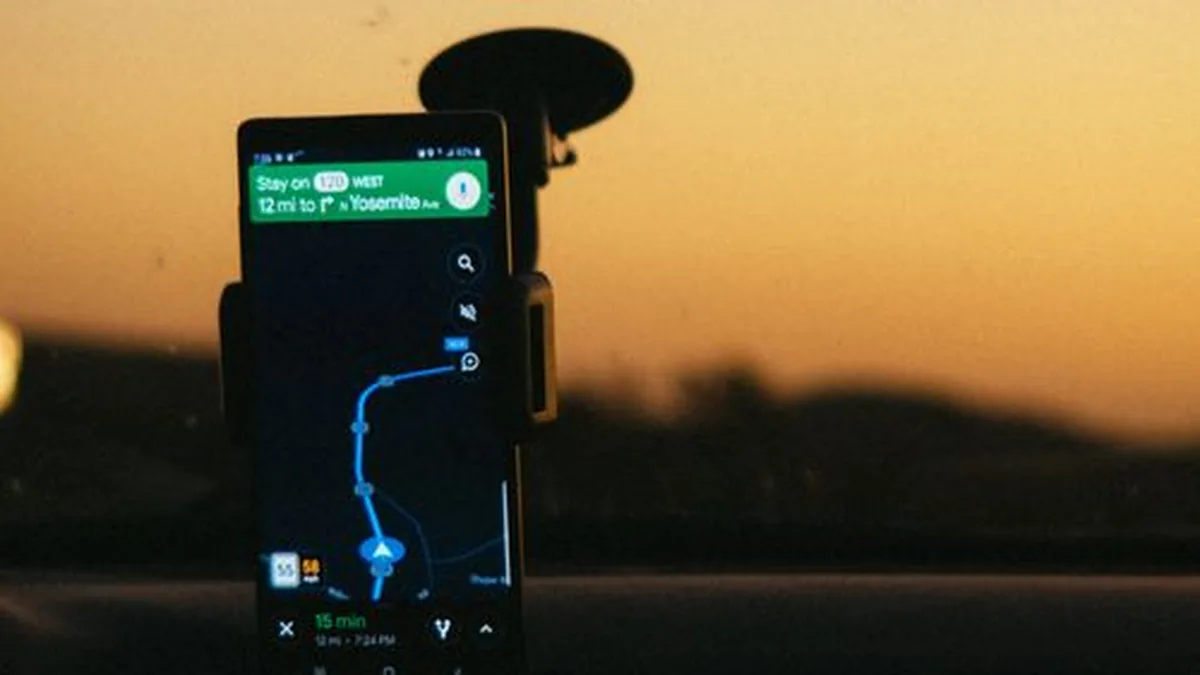
Check your profile insights each month. Note profile views, calls, direction requests, and website visits, and compare each month with the month before.
If numbers fall, look for stale details first. Wrong hours, missing services, and old photos are common causes, and all three are quick to fix.
What If Verification Does Not Work?
Many owners claim Google Business Profile and then hit a problem with verification. Most problems have a simple cause.
First, check every detail for typos. One wrong letter in a business name or one wrong digit in an address can block a postcard or a code.
Second, check that your category fits your work. A bakery listed as a restaurant, or a plumber listed as a shop, can raise questions during review.
Third, make sure your address matches reality. If customers visit you, the address must be a place they can find. If you visit customers, set a service area and hide your home address.
If a postcard never arrives, check with anyone who handles your mail. Then look for another method in your profile, or ask Google for help through the support options inside the profile tools.
Do not create a second profile to get around a failed check. A second profile will only add a duplicate problem on top of the first one.
Our guide on how local SEO works in simple words explains how the profile, website, and reviews work together, which helps when you try to find the weak link.
What Mistakes Should You Avoid?
- Creating a second listing for the same business at the same address. Duplicates split reviews and confuse Google.
- Using a name that is not your real business name. Extra keywords in the name field can cause delays and lost trust.
- Sharing your verification code with strangers. A code proves ownership, so keep it private.
- Leaving the profile empty after verification. An empty profile looks inactive, even if the business is busy.
- Ignoring reviews and questions. Unanswered feedback shapes what new customers think, good or bad.
- Letting hours go stale after holidays or a move. Wrong hours send customers to a closed door.
Frequently Asked Questions
Do I need to claim Google Business Profile if I already have a website?
Yes. A website and a profile do different jobs. The website gives detail, while the profile controls what customers see on Google Search and Google Maps.
Many customers never reach your website. They call, ask for directions, or check reviews straight from the profile.
How long does verification take?
It depends on the method. Phone, text, and email codes usually arrive fast. A postcard takes longer, because it travels by post.
Video checks need review time after you submit the video. If a method stalls, check your details and try the next method Google offers.
Can more than one person manage a profile?
Yes. The owner can add managers who can edit details and reply to reviews. Keep the owner role with a person you trust inside the business.
If a manager leaves, remove their access at once, so only current team members can change your details.
What if I run my business from home and do not want my address shown?
Set your business as a service area business. Hide your home address, and list the areas you serve instead.
Customers will still find you on Google Maps, and they can call or message you without seeing your home address.
What if my business moves or closes?
Update the address as soon as you move, and check the new details with a fresh verification if Google asks for one.
If the business closes for good, mark the profile as permanently closed. That stops customers from visiting a closed door, and it keeps your record honest.
Can I claim a profile for a business I do not own?
No. Only the owner, or a manager authorised by the owner, should claim a profile.
If you spot an error on a profile you do not own, use the suggest an edit option on Google Maps instead of trying to claim it.
Ready to Claim and Verify Your Profile?
Ready to claim Google Business Profile and take control of what customers see on Google Search and Google Maps? Start with a search for your business name, ask for ownership if a profile already exists, and complete verification with care.
A claimed and verified profile helps nearby customers find you, trust you, and contact you at the moment they need you.
Complete every section, add real photos, and keep your details fresh each month. Small steady effort here pays off in calls, visits, and bookings.
If you want expert help with your profile, reviews, and local pages, take a look at our local SEO services.
You can also contact us for a free chat about your business, your profile, and the next step that fits you best.