
Google Business Profile setup is the process of claiming and completing your free business listing on Google. You add your real name, address, phone number, hours, services, and photos, then you verify that the business is yours. Once live, the listing shows your business on Google Search and Google Maps when nearby customers search.
This guide covers
- Key Takeaways
- What Is Google Business Profile?
- Why Does Your Business Need a Profile on Google?
- What Do You Need Before You Start?
- How Do You Set Up a Profile Step by Step?
- How Does Verification Work?
- What Should You Add After the Listing Goes Live?
- What Mistakes Should You Avoid?
- How Do You Keep the Profile Working for You?
- Frequently Asked Questions
- Ready to Set Up Your Profile the Right Way?
Key Takeaways
- Google Business Profile setup gives you the free listing that puts your business on Google Search and Google Maps.
- A complete profile helps nearby customers trust you, find you, and contact you with less effort.
- Gather your real name, address, phone number, hours, services, and photos before you start.
- Verification proves the business is yours and unlocks full control of the listing.
- Photos, reviews, posts, and a short monthly check keep the profile active and useful.
What Is Google Business Profile?
Google Business Profile is a free tool from Google for businesses that serve a local area. It is the panel and the map listing that customers see when they search for a service near them.
Picture a person who needs a plumber fast. She searches on her phone. Google shows a short list of nearby plumbers, with a map, ratings, hours, and phone numbers. Each entry in that list comes from a profile.
Your website tells the full story of your business. Your profile gives the quick facts a customer needs in the moment. The two work together, but the profile often brings the first call. That first call is the whole point of Google Business Profile setup.
If local search is new to you, read our guide on what local SEO is and why your small business needs it. That guide explains the wider idea. This guide focuses on one part of it: your listing on Google.
Why Does Your Business Need a Profile on Google?
Most local customers start with a search. They type a service and a place, or they let Google use their phone location. Google then shows nearby businesses, often with a map at the top.
A business with no profile cannot appear in that map list in the same way. It misses the customers who are ready to act right now. That gap is why Google Business Profile setup is a first step, not an extra task.
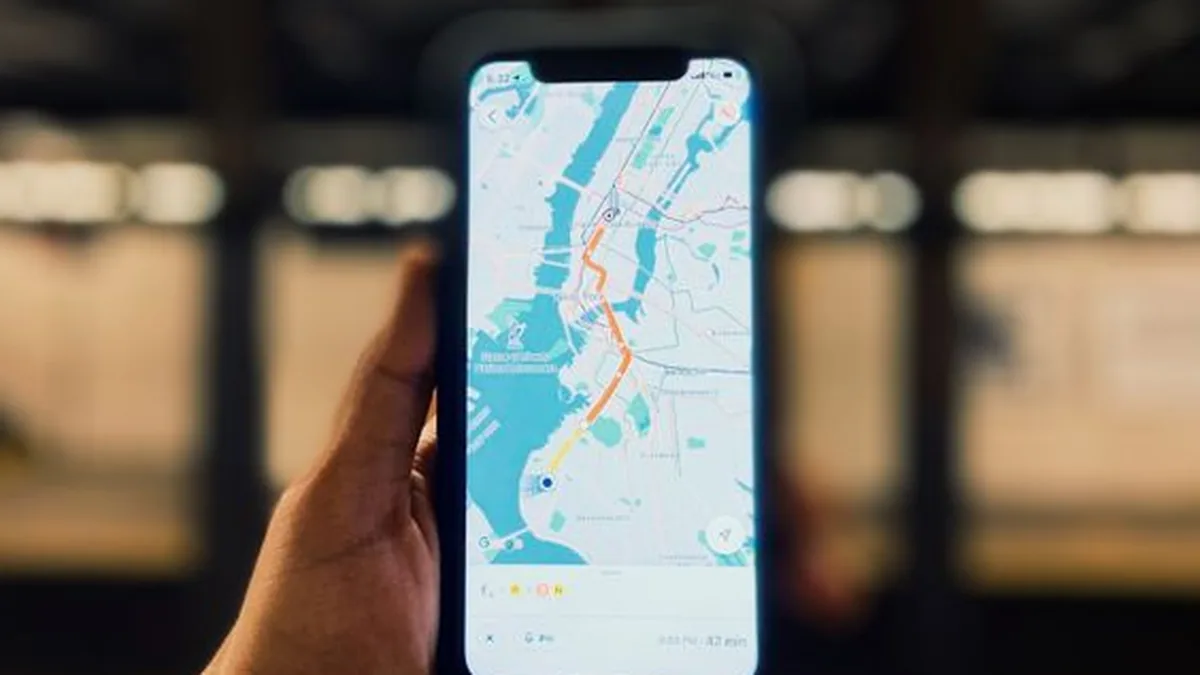
A complete profile also builds trust before the first call. Real photos show what your shop or team looks like. Reviews show what past customers thought. Correct hours stop a customer from visiting when you are closed.
Clear services stop wasted calls from people who need something you do not offer. Each detail answers a question a customer would ask anyway. That is time saved for you and for them.
The profile is free. There is no charge to create it, add photos, reply to reviews, or post updates. For a small business, it is one of the most useful free tools for local visibility, and Google Business Profile setup costs nothing but your time.
Our guide on how local SEO works in simple words explains how the profile, reviews, and website pages work together to build trust with Google.
What Do You Need Before You Start?
Gather your details before you start Google Business Profile setup, so you can finish in one sitting. You need your exact business name, as it appears on your shop front or your official papers.
You need your full street address if customers visit you. If you visit customers at their homes or workplaces, you need your service area instead. You also need a phone number you answer during business hours, and a website address if you have one.
Prepare a short description of what you do, in plain words. List your main services, not every small task. Note your opening hours for each day, including days you close early.
Prepare a few real photos of your shop, your team, your products, or your recent work. Phone photos are fine, as long as they are clear and honest. Photos that show a different business can mislead customers, so use your own photos where you can.
Check that the name, address, and phone number you plan to use match the details on your website. Google checks these details across the web to confirm that your business is real.
Small differences, like an old phone number or a shortened street name, can slow verification and weaken trust.
| Business type | What Google shows | What you provide |
|---|---|---|
| Shop front business, customers visit you | Full street address on Google Maps | Street address, hours, photos of the shop |
| Service area business, you visit customers | Areas you serve, home address hidden | List of areas served, no home address shown |
Pick the type that matches how you really work. A salon with a shop shows its address. A plumber who visits homes hides his home address and lists his service area. The wrong choice confuses customers and can cause problems with Google later.
How Do You Set Up a Profile Step by Step?
Google Business Profile setup follows a clear order. Work through each step in full. A half finished profile ranks poorly and confuses customers.
- Go to the Google Business Profile page and sign in with a Google account you control. Use a business account, not a personal account you may lose access to later.
- Enter your exact business name. Do not add extra service words or place names to the name field. Google can remove a listing that breaks this rule.
- Choose the right business type. Tell Google whether customers visit your address, or whether you visit customers and hide your address.
- Choose your main category, then add extra categories that truly fit. A bakery can add a cafe category if it serves coffee. It should not add categories for services it does not offer.
- Add your address or your service area, your phone number, and your website address. Check every letter and digit before you move on.
- Write your description, add your opening hours, and list each main service in plain words. Add useful attributes, such as bookings, parking nearby, or delivery.
- Add real photos. Start with your shop front, your interior, your team, and examples of your work. Good photos help customers recognise your business when they arrive.
- Send your listing for verification and follow the steps Google gives you. Verification proves that you own or manage the business.
Take your time with categories and attributes. They help Google match your listing with the right searches. A salon that lists hair colouring, bridal styling, and walk in appointments as services will match more real searches than a salon with one bare category.
How Does Verification Work?
Verification is how Google checks that you are linked to the business. Google may offer more than one method. The options depend on your business type and your location.
Common methods include a postcard sent to your business address, a phone call or text message to your business number, an email, or a short video that shows your shop, your tools, and proof that you work there.
Verification is the step in Google Business Profile setup that owners worry about most. In practice, it is simple when your details are real and consistent.
Follow the method Google offers, and use real proof. Do not use a false address, a virtual office, or a mailbox address that is not your real place of business.
Google can suspend a listing that uses false details, and a suspension can take time to fix.
If you work from home and visit customers, follow the rules for a service area business and hide your home address, as Google directs. Your customers see the areas you serve, not your home.
While you wait during Google Business Profile setup, you can still prepare photos, services, and review requests. Once verification is complete, your listing gains full control. You can post updates, reply to reviews, and edit details as your business changes.
What Should You Add After the Listing Goes Live?
A live listing is only the start after Google Business Profile setup. The businesses that stand out keep their profiles fresh and complete. Treat Google Business Profile setup as the start of a habit, not a one time task.
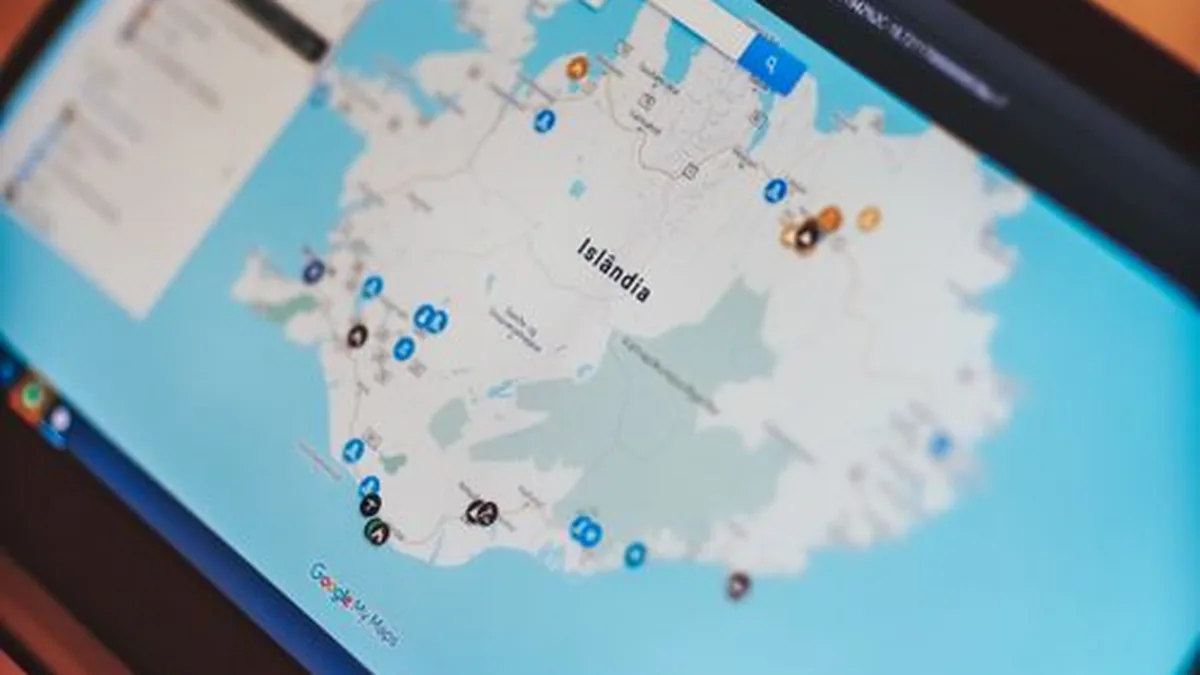
Add photos on a regular basis. New work, seasonal products, or team moments all show that the business is active. Photos help customers picture what to expect before they visit.
Post short updates too. A new service, a change in hours, a seasonal offer, or a community event are all good reasons to post. Keep each update short and clear. Link to the right page on your website when it helps.
A profile with no updates for a long time can look closed or inactive, even when the business is busy. One post a month is enough to show life.
Ask happy customers for a review on Google, and reply to every review you receive. Thank customers for kind words. Answer complaints in a calm and polite way.
A thoughtful reply to a complaint can win back trust, because future customers read replies as well as reviews.
Never buy fake reviews. Google removes fake reviews, and a removal can damage trust in the whole listing. Honest reviews, even a few, beat a large number of suspicious ones.
Use the questions section well. Customers can ask public questions on your profile, and anyone can answer them. Answer each question yourself, in clear words, so wrong answers do not stay visible.
Add common questions yourself when Google allows it, such as parking, bookings, or payment options.
What Mistakes Should You Avoid?
A few common mistakes cause most profile problems. All of them are easy to avoid.
- Wrong or incomplete name, address, or phone number. Check these details after every move, phone change, or change in hours.
- Keyword stuffing in the business name field. Extra service words in the name break Google rules and can lead to removal.
- Photos that do not show your real business. Customers feel misled when they arrive and find a different shop, team, or product.
- Ignoring reviews and questions. An unanswered complaint stays visible and shapes what new customers think.
- A second listing for the same business at the same address. Duplicate listings confuse Google and split your reviews. Claim and fix the existing listing instead.
If your listing is suspended, do not create a replacement. Read the reason Google gives, fix the problem with correct business proof, and follow the reinstatement steps. A clean and honest listing is far easier to restore than a listing built on false details.
Most of these problems are easy to avoid when Google Business Profile setup is done with care and real details.
How Do You Keep the Profile Working for You?
Set a short monthly routine. Check that your hours are correct, including holidays and seasonal changes. Check that your phone number and website link still work.
Add one or two new photos. Reply to any new reviews. Post one update. This routine takes little time, and it keeps the listing accurate and active.

Also look at the simple insights Google shows you. You can see how people found your listing and what they did next, such as calls, direction requests, and website visits. These signs show whether nearby people are finding you.
If calls stay flat after Google Business Profile setup, check whether your profile is complete, whether reviews have gone quiet, or whether your service pages need clearer wording.
When competition is strong, or when you want deeper work across your profile, reviews, and website pages together, our local SEO services can help. A strong profile plus strong pages is what moves a business up the map list.
Frequently Asked Questions
Is Google Business Profile free?
Yes. Creating a profile, adding photos, replying to reviews, and posting updates are free. Google may offer paid ads beside the free listing, but the listing itself costs nothing to create and maintain.
Do I need a shop front to create a profile?
No. Businesses that visit customers can create a service area listing and hide their home address. You still need a real business that serves a local area, and you must follow the Google rules for your business type.
How long does verification take?
Verification time varies with the method Google offers and your location. A phone or email check can be quick, while a postcard takes longer to arrive by post. Follow the steps Google gives you, and use real business proof to avoid delays.
Can I manage the profile from my phone?
Yes. You can manage the listing from a phone or a computer, including edits, photos, posts, and review replies. A phone is handy for quick replies and fresh photos, while a computer suits longer edits and a full check of your details.
What if my business already has a listing I did not create?
Claim the existing listing instead of creating a new one. Search for your business on Google Maps, choose the listing, and follow the claim steps. Once you verify ownership, you can correct the details and manage the listing yourself.
Ready to Set Up Your Profile the Right Way?
A clear profile, honest photos, real reviews, and correct details give nearby customers a simple path to your door or your phone. Start with the steps above, verify the listing, and keep it fresh each month.
If you want expert help with your profile, reviews, and local rankings, take a look at our local SEO services and see how we help small businesses get found by customers nearby.
You can also contact us for a free chat about your business and your local goals.